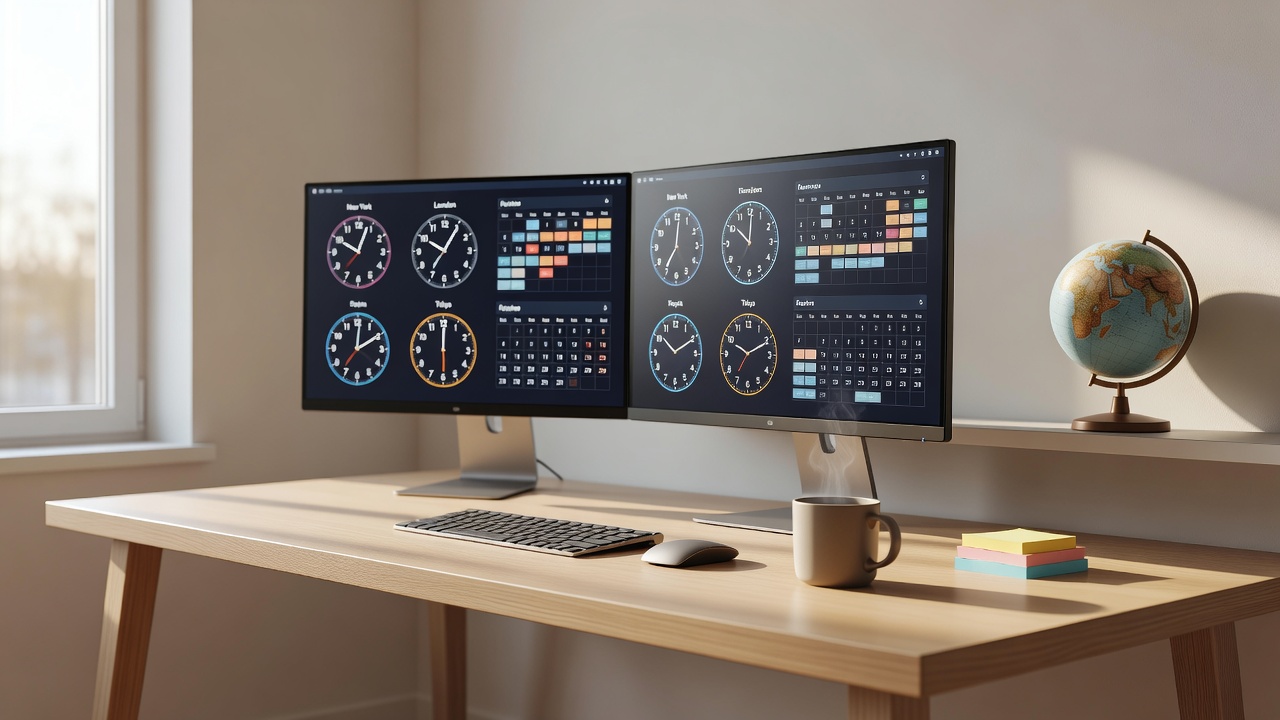
The best free timezone meeting planner for remote teams in 2026 is one that lets you instantly visualize overlapping working hours across multiple cities, requires no sign-up, and works in any browser — and our own Meeting Planner tool does exactly that. Whether you're coordinating a sprint review between Toronto, Berlin, and Singapore, or scheduling a client call across three US time zones, the right planner eliminates the mental math and the embarrassing "wait, what time is that for you?" back-and-forth.
Why Timezone Scheduling Is Still a Major Remote Work Problem
Remote work has normalized distributed teams, but our calendar tools haven't fully caught up. Most video-conferencing platforms default to the host's local time. Shared calendars show events correctly only after someone has accepted an invite — by which point a mistake has already been made. The result: missed meetings, double-booked stakeholders, and team members dragged into calls at 11 PM on a Friday.
The core challenge isn't just knowing what time it is somewhere else. It's finding a window that works for everyone simultaneously — accounting for working hours, DST transitions, and cultural norms around lunch or prayer times. That requires a visual, interactive planner, not a static world clock.
What Makes a Timezone Meeting Planner Actually Good?
Before comparing tools, here are the criteria that separate genuinely useful planners from glorified world clocks:
- Multi-city input: You should be able to add at least 5–10 locations simultaneously.
- Visual overlap display: A color-coded timeline showing each team member's working hours at a glance.
- DST awareness: Daylight Saving Time shifts happen on different dates in different countries. A good tool handles this automatically.
- No account required: Friction-free tools get used. Anything requiring a login gets abandoned.
- Shareable links or output: You need to send the proposed time to participants — ideally with a single link.
- Mobile-friendly: Remote workers are often on the move.
Top Free Timezone Meeting Planners Compared (2026)
Here's an honest, side-by-side breakdown of the most widely used free options available right now:
| Tool | Multi-City | Visual Overlap | DST Aware | No Login | Shareable | Mobile-Friendly |
|---|---|---|---|---|---|---|
| Workaholic Meeting Planner | ✅ Yes | ✅ Yes | ✅ Yes | ✅ Yes | ✅ Yes | ✅ Yes |
| World Time Buddy | ✅ Yes (4 free) | ✅ Yes | ✅ Yes | ⚠️ Limited free | ✅ Yes | ✅ Yes |
| Every Time Zone | ✅ Yes | ✅ Yes | ✅ Yes | ✅ Yes | ❌ No | ✅ Yes |
| Time.is | ⚠️ Partial | ❌ No | ✅ Yes | ✅ Yes | ❌ No | ⚠️ Partial |
| Calendly (free tier) | ❌ No | ❌ No | ✅ Yes | ❌ Login required | ✅ Yes | ✅ Yes |
| Doodle (free tier) | ❌ No | ❌ No | ⚠️ Partial | ⚠️ Limited free | ✅ Yes | ✅ Yes |
Note: Feature availability reflects free-tier access as of early 2026. Paid tiers for third-party tools unlock additional features not listed here.
How to Use a Timezone Meeting Planner Effectively
Having the right tool is half the battle. Using it well is the other half. Here's a practical workflow adopted by high-performing distributed teams:
1. Anchor to One Reference Timezone
Pick a single "source of truth" timezone — usually UTC, or wherever your largest cluster of teammates lives. Always communicate proposed times in that reference zone plus a note about local equivalents. This prevents the confusion that arises when half the team uses 12-hour format and the other half uses 24-hour.
2. Identify the Overlap Window Before You Propose a Time
Don't open your calendar first. Open your timezone meeting planner first. Enter every participant's location, set the target date, and look for green/light zones where all participants are within normal business hours (roughly 9 AM–6 PM local). Only then slot the meeting into your calendar.
3. Rotate Meeting Times Fairly
If your team spans 12+ hours of timezone difference — say, New York to Tokyo — there is no universally convenient time. A fair policy: rotate the "pain" of the awkward hour. One week New York takes the early morning call; the next week Tokyo takes the late evening. Document this in your team charter so it doesn't feel arbitrary.
4. Always Include a Timezone Suffix in Calendar Invites
Write: "Daily standup — 9:00 AM EST / 2:00 PM GMT / 11:00 PM SGT" directly in the invite title or description. It takes 30 seconds and eliminates 95% of "wait, is that my time?" follow-up messages.
5. Recheck on DST Transition Weeks
The US, EU, and Australia change clocks on different dates. A recurring meeting set for "10 AM London / 5 AM New York" in January suddenly becomes "10 AM London / 6 AM New York" in March — because the US switches before the UK. A DST-aware planner will flag this. A static world clock won't.
Timezone Pitfalls That Cost Remote Teams Real Money
Scheduling errors aren't just annoying — they're expensive. Consider:
- A missed client demo due to a timezone miscommunication can cost a deal worth thousands of dollars.
- Engineering teams that consistently schedule standups at inconvenient local times report higher burnout and lower retention — both of which carry hard dollar costs.
- Legal and compliance deadlines tied to specific jurisdictions (a common challenge for teams using our immigration and software services) can be missed if time conversion is done manually and incorrectly.
The ROI on using a reliable, free meeting planner is immediate and measurable. There's no reason to rely on mental math or a Google search for "what time is it in Berlin" when a dedicated tool does it better in seconds.
Integrating a Meeting Planner Into Your Team Workflow
The most effective remote teams don't just use timezone tools reactively — they embed them into their async-first culture. Practical integration points include:
- Team wikis and Notion pages: Embed a pre-configured planner link showing your team's cities so anyone can check overlap in one click.
- Slack or Teams pinned messages: Pin a link to your meeting planner in every cross-regional channel.
- Onboarding checklists: Make "bookmark the team meeting planner" a Day 1 task for every new hire.
- Project kick-off templates: Include a timezone overlap analysis as a standard section whenever a new distributed project begins.
If your team is growing internationally — or if you're navigating Canadian immigration pathways for global talent through programs like our Global Maple immigration support — getting timezone coordination right from day one is critical to team cohesion.
Beyond the Meeting Planner: Other Free Tools for Remote Productivity
A timezone planner is one piece of the distributed-work puzzle. Our full suite of 260+ free browser tools covers everything from text formatting and JSON validators to unit converters and color pickers — all no-login, no-install, and built for people who work fast. If there's a tool you wish existed, you can always reach out and suggest it; several of our tools started as user requests.
For deeper dives into remote work strategies, async communication, and developer productivity, explore our blog — updated regularly with practical, no-fluff guides written by practitioners.
Quick Reference: Timezone Offsets for the Most Common Remote Work Hubs
| City | Timezone | UTC Offset (Standard) | UTC Offset (DST) |
|---|---|---|---|
| New York | EST / EDT | UTC−5 | UTC−4 |
| Toronto | EST / EDT | UTC−5 | UTC−4 |
| London | GMT / BST | UTC+0 | UTC+1 |
| Berlin / Paris | CET / CEST | UTC+1 | UTC+2 |
| Dubai | GST | UTC+4 | No DST |
| Bangalore | IST | UTC+5:30 | No DST |
| Singapore | SGT | UTC+8 | No DST |
| Sydney | AEST / AEDT | UTC+10 | UTC+11 |
| Auckland | NZST / NZDT | UTC+12 | UTC+13 |
Stop guessing and start scheduling with confidence. Open the Workaholic Meeting Planner right now — no account, no download, no friction. Enter your team's cities, find your overlap window in seconds, and get back to the work that actually matters.